
iPhone Installation Guide
Mega888 iOS Download: Install and Verify Mega888 on iPhone
Version
Current Mega888 iOS release
Installation name
Mega888
File type
iOS App Package (.ipa)
Compatible device
Apple iPhone, supported iOS
File size
66,194 KB
Download method
Direct install via Safari
Verification
Developer/profile approval may be required
Need help with the Mega888 iOS download? Contact an agent through WhatsApp or Telegram for assistance.
Using an Android phone? The Mega888 download for iOS does not use an APK file. Follow the Mega888 APK download guide if you use Android.
Download Mega888 on a compatible iPhone through Safari, then complete any installation or developer verification shown by iOS. This visual guide explains each screen from the first download prompt to the Mega888 login page.
Before You Begin
Before Installing Mega888 on an iPhone
Complete these checks before starting the installation. They help prevent compatibility, storage and verification problems later.
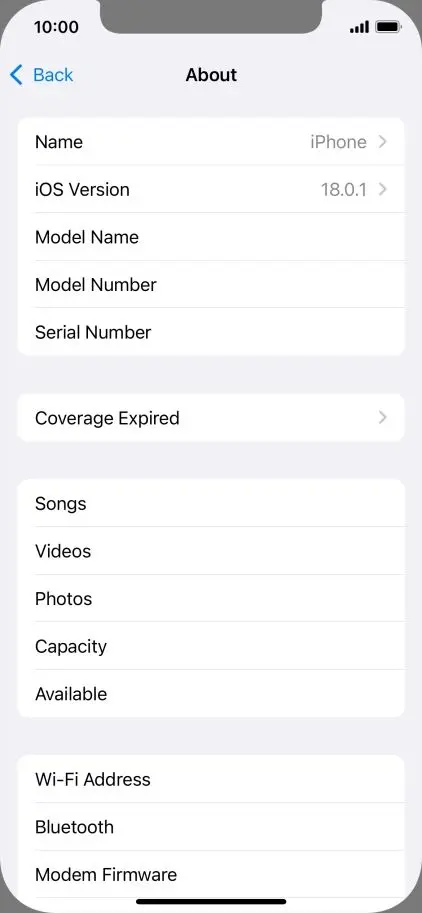
Check Your iOS Version
Settings → General → About → iOS Version
Compare the displayed version with the minimum requirement shown above. Do not continue if your iPhone does not meet the current requirement.
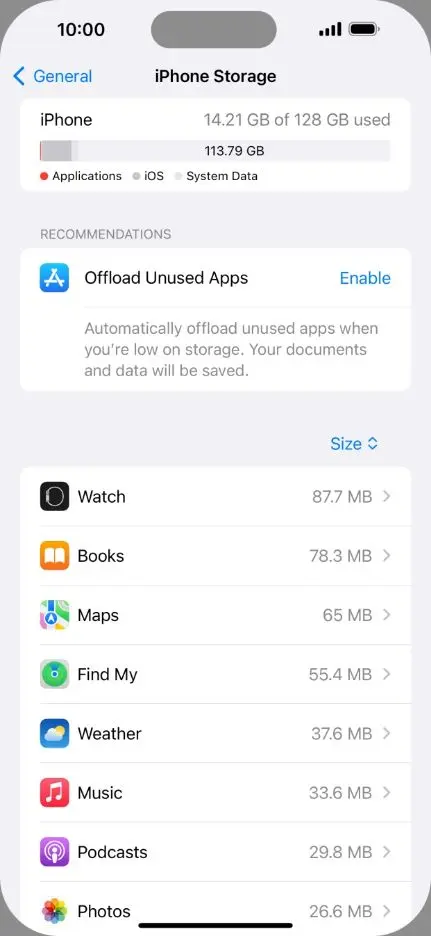
Check the Available iPhone Storage
Settings → General → iPhone Storage
Keep enough free space for the download and installed application. Remove files only when you understand what they contain and no longer need them.
Use Safari and a Stable Connection
Open the download page in Safari and use a stable Wi-Fi or mobile-data connection. An in-app browser from WhatsApp, Telegram or another application may not show the same installation prompts.
The internet connection must remain active while the application downloads and while iOS verifies the developer.
Check the Current Developer or Profile Name
The developer or profile name displayed during installation should match the verified information shown above. Stop if the iPhone displays an unfamiliar name.
Do not approve unrelated profiles or bypass restrictions on an iPhone managed by an employer, school, parent or device administrator.
Updating or reinstalling Mega888?
Keep your existing Mega888 ID and password before replacing the application.
How to Download and Install Mega888 iOS
Open the Mega888 iOS Download Page
Open the page directly in Safari. If you arrived through WhatsApp, Telegram or another application, select Open in Safari from its browser menu.
Confirm that the page address is correct before selecting the download button.
Download Mega888 iOS
Tap Download Mega888 iOS once. Safari or iOS should display an installation request.
If the package information is shown, confirm that the filename is Mega888_0_V1.2.ipa.
Stop if the displayed application, filename, developer or profile details do not match the information provided on this page.
Confirm the Installation
Select Install when iOS asks whether you want to install Mega888.
The wording and appearance may differ according to the iPhone model, installed iOS version and current installation method.
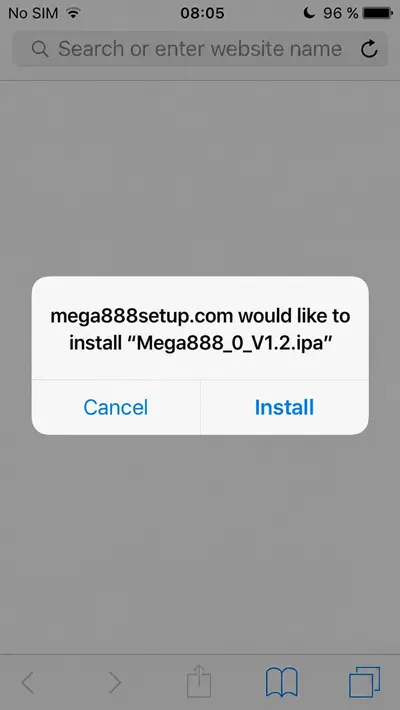
If the current installation method provides a configuration profile, open:
Settings → Profile Downloaded → Install
Review the profile name and organisation before approving it. Only install a profile when the current Mega888 instructions specifically provide one.
Apple states that a downloaded configuration profile is automatically deleted if it is not installed within eight minutes.
Wait for Mega888 to Finish Installing
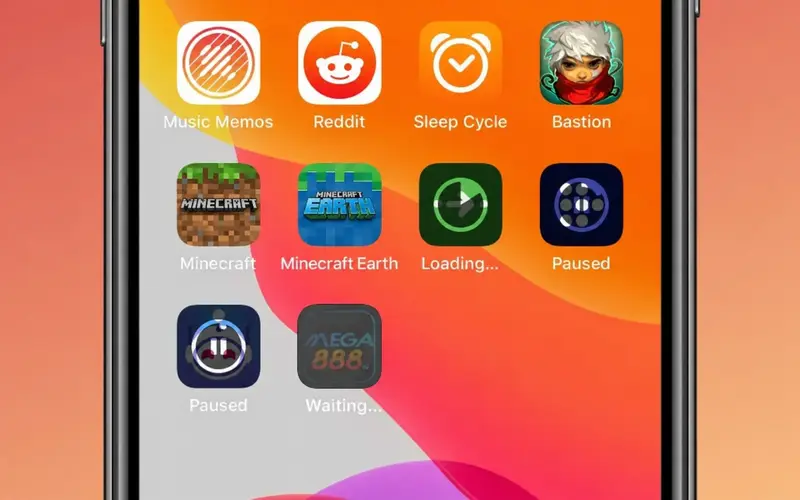
Return to the iPhone Home Screen and locate the Mega888 icon. The icon may appear grey or display a progress indicator while the application downloads.
Keep the internet connection active and allow the installation to finish. Do not repeatedly tap the icon or start several downloads.
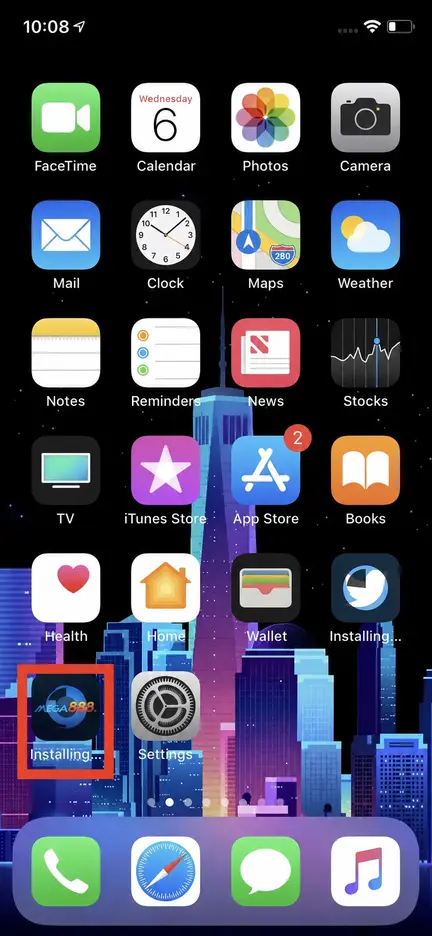
Tap the Mega888 icon once after the progress indicator disappears.
Verify the Mega888 Developer if Required
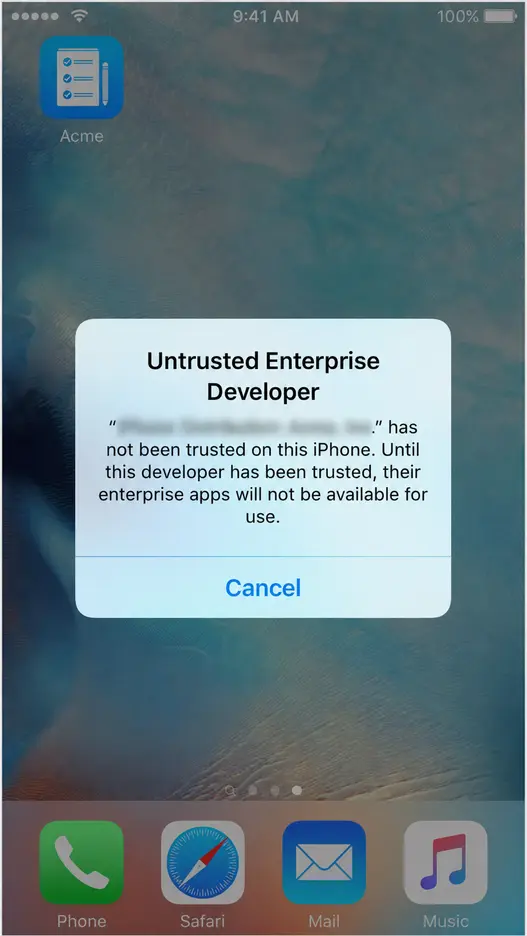
Mega888 may open immediately. If iOS displays Untrusted Enterprise Developer, tap Cancel and open:
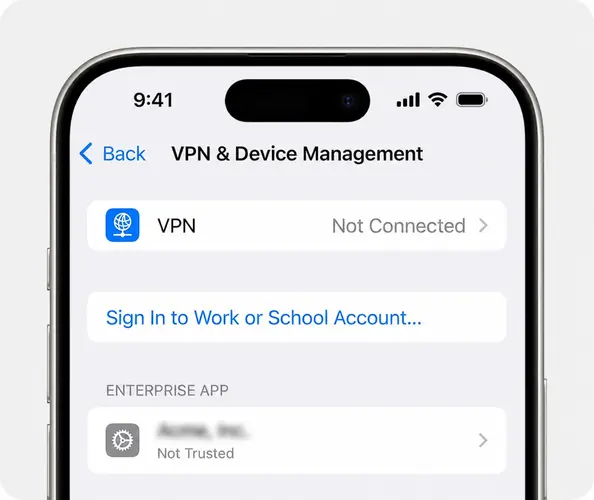
Settings → General → VPN & Device Management → [Developer Name]
Compare the displayed developer name with the current information provided for the download.
If the details match:
- On iOS 18 or later, tap Allow & Restart
- On an earlier iOS version, tap Trust
- Follow the onscreen instructions after the iPhone restarts
- Keep the iPhone connected to the internet during verification
These options follow Apple's current instructions for manually installed enterprise applications.
Do not continue if the developer name is missing, different or unexpected.
Open Mega888
Open Mega888 again after completing any required verification. The application should display its starting or login screen.
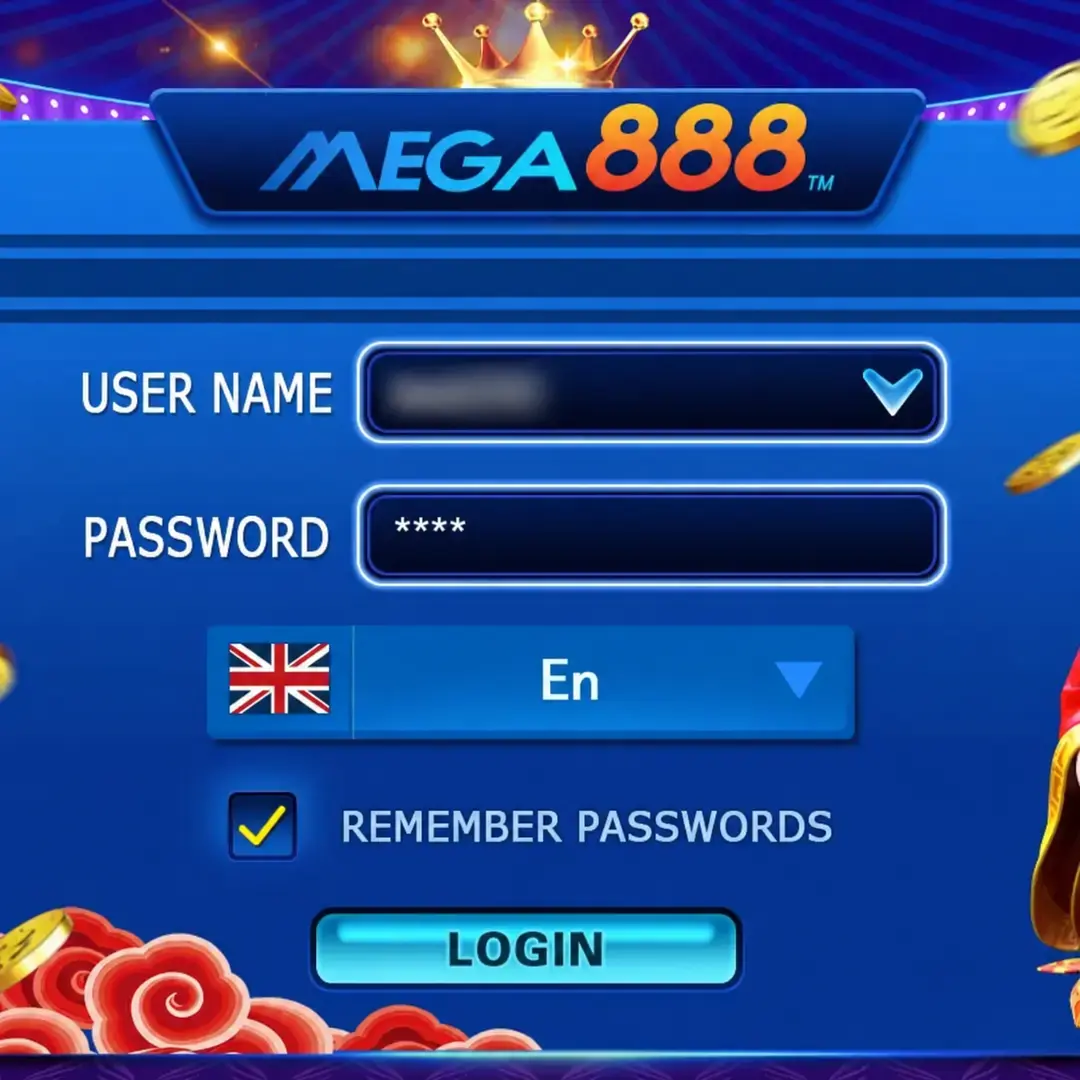
If the login screen appears, the application has been installed successfully.
Mega888 iOS Problems and Troubleshooting
Match the message displayed on your iPhone with the relevant solution below. Do not disable iOS security or install an unrelated profile to force the application to open.
Mega888 Is Grey, Waiting or Loading
Check your internet connection and available iPhone storage. Tap the Mega888 icon once only if the download appears paused.
If the icon remains stuck:
- Restart the iPhone
- Reopen the download page in Safari
- Confirm that enough storage is available
- Start the current Mega888 iOS download again
iPhone Shows "Unable to Install"
Possible causes include:
- Insufficient iPhone storage
- An interrupted internet connection
- An unsupported iOS version
- A temporarily unavailable installation source
- An expired or invalid installation certificate
Check the iOS version, available storage and internet connection. If the requirements are met, wait before attempting another download.
iPhone Shows "Untrusted Enterprise Developer"
Settings → General → VPN & Device Management → [Developer Name]
Compare the displayed name with the current developer information. Follow Step 5 only when the names match.
Do not approve a developer that is missing or unfamiliar.
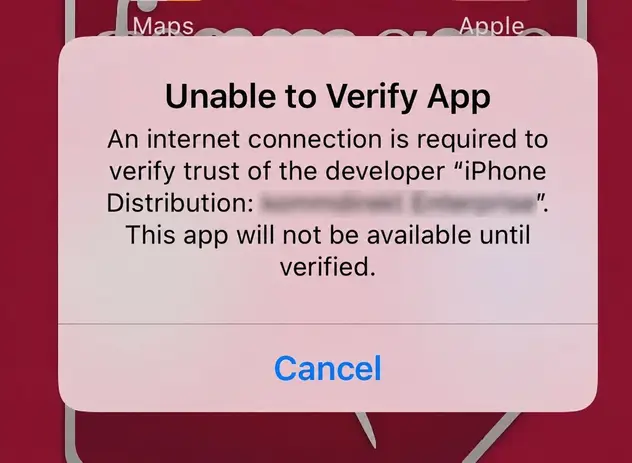
iPhone Shows "Unable to Verify App" or "Not Verified"
Connect the iPhone to the internet and open:
Settings → General → VPN & Device Management → [Developer Name]
Select the available verification option. If the message remains, the developer certificate may be temporarily unavailable, expired or revoked.
Do not bypass the warning. Contact an agent for the current installation status.
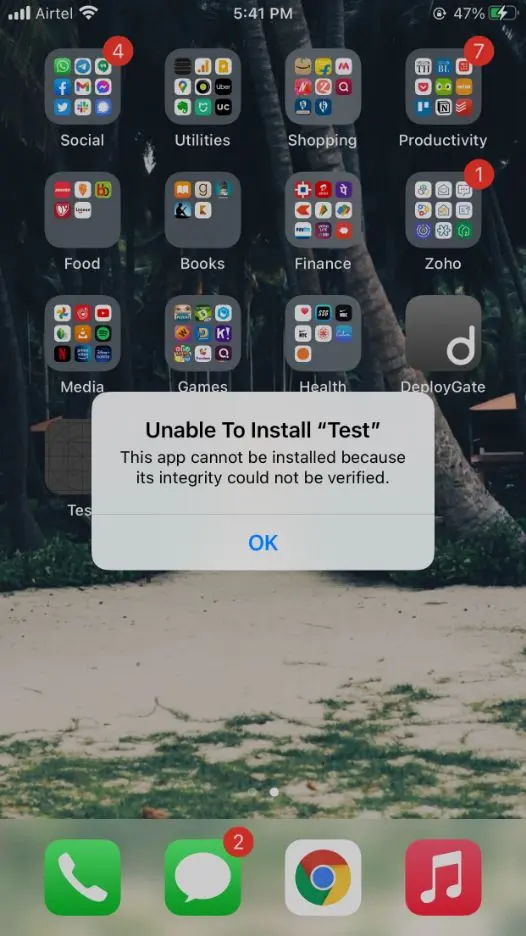
iPhone Shows "App Integrity Could Not Be Verified"
Stop and confirm that you used the current Mega888 iOS download link. This message means iOS could not validate the application at that time.
Contact an agent for the latest installation method before downloading the application again.
The Developer Name Is Missing
The installation may not have finished, or the current installation method may not require manual developer approval.
Complete the download and attempt to open Mega888 once before checking VPN & Device Management again.
Do not install another profile simply to make a developer name appear.
"Profile Downloaded" Does Not Appear
This option appears only when a configuration profile has been downloaded.
If the current installation uses a profile, return to Safari and download it again. Remember that iOS may automatically delete a profile when it is not installed within eight minutes.
Do not download a replacement profile from an unrelated website.
Mega888 Opens and Immediately Closes
Restart the iPhone and check the available storage. Confirm that the installed iOS version meets the current requirement.
If the problem continues, the application or its developer certificate may no longer be valid. Contact an agent before reinstalling it.
Installation Is Blocked on a Managed iPhone
A work, school or family restriction may prevent application installation, profile approval or developer verification.
Contact the person or organisation managing the device. Do not attempt to bypass its management controls.
Frequently Asked Questions
Can I transfer Mega888 from my old iPhone to a new iPhone?
Install it separately on the new iPhone using the current download guide.
Does an iCloud restore reinstall Mega888 automatically?
Not always. Keep your login details and reinstall the current version manually.
Can I move the Mega888 icon to another Home Screen?
Yes. Move it like any other application on your iPhone Home Screen.
Does updating iOS remove Mega888?
Usually not, but compatibility or certificate changes may affect later access.
Can I use the same Mega888 account on a new iPhone?
Account access may depend on agent rules. Confirm before changing devices.
Why might the displayed developer name change?
Installation certificates may change, so verify the displayed name before trusting it.